
Markdown note templates for Mac: weekly plan, meeting notes, checklist
Download free Markdown templates for a weekly plan, meeting notes, and a release checklist. Use them in PINote’s Mac editor, or in any app that opens .md files.
Last updated:
Markdown gives a short note enough structure to be useful later: a heading for the topic, a list for the details, and a checkbox for the next action. PINote brings those tools to your Mac menu bar, with a visual editor, search, images, and attachments.
You can use the examples below in PINote or another Markdown app. They are ordinary text files, free to download, with no registration.
Jump to an example: Weekly plan · Meeting notes · Release checklist
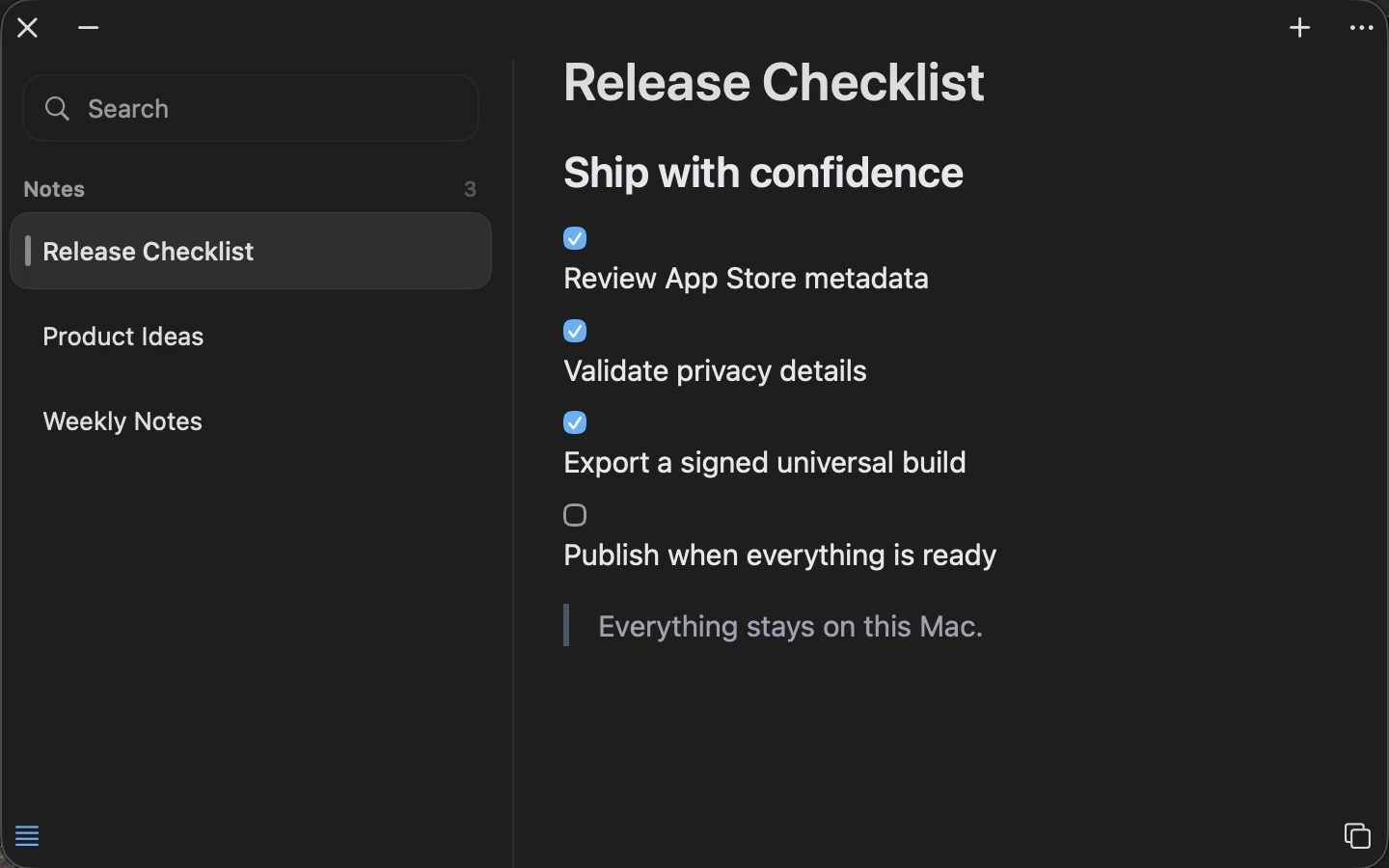
A checklist in PINote. The examples below use the same idea: a clear heading and a small set of next actions.
Start with a note you will return to
- Install PINote on a Mac running macOS 14 or later.
- Click its menu-bar icon and create a note with +.
- Give the note a specific title, such as “Website launch” or “Weekly plan.”
- Write the useful details first. Add headings and lists when they make the note easier to read.
- Set a global opening shortcut in Settings if you prefer the keyboard.
The menu-bar entry keeps a small note close while you work in other apps. For something you need again, use the sidebar search instead of creating another copy.
1. A weekly note that leaves room for change
A weekly note works well when your tasks are small enough to scan together. Keep priorities short and separate things you intend to do from observations you want to keep.
# Weekly plan

## Three priorities

- [ ] Finish the first draft
- [ ] Review the open questions
- [ ] Send the agreed next steps

## Notes as the week unfolds

- Monday:
- Friday:

## Carry forward

-
Download the weekly plan (.md)
Import the downloaded Markdown file into PINote using its Markdown import action, or open it in another editor. Change the example tasks to your own. A checklist here is part of a note; it does not schedule a reminder or assign a task to someone else.
2. Meeting notes you can act on
Give decisions and open questions their own headings. That makes it easier to return to the outcome without rereading the whole conversation.
# Meeting notes

## Context

- Date:
- People:
- What we need to decide:

## Decisions

-

## Next actions

- [ ] Action — owner — target date

## Open questions

-
Download the meeting notes (.md)
PINote is for notes you write yourself. This workflow does not record or transcribe a meeting. When you share a note, check it for private details first; an exported copy can be stored or forwarded independently of PINote.
3. A release checklist with the context attached
For a small release, keep the checks and the evidence together. Use a code block for a command, a link for a reference, or an attachment for a file you need to review.
# Release checklist

## Before release

- [ ] Verify the version and release notes
- [ ] Test the main user journey
- [ ] Check the download and support links
- [ ] Save a recovery copy

## After release

- [ ] Verify the published result
- [ ] Record follow-up issues

## References

- Release notes:
- Recovery location:
Download the release checklist (.md)
Keep the writing portable
PINote stores its working library locally. Markdown export gives you readable files to use elsewhere; Pro adds two-way syncing with a selected folder. The storage guide explains the difference between the working library, exported files, and a restorable backup.
Markdown features vary between editors, especially around tables and attachments. Try a representative note in the destination app before moving a large collection.