Open from your menu bar
Click the menu bar icon or press your global shortcut. Your note stays above other windows, ready while you read or work.
 PINote
MARKDOWN NOTES IN YOUR MAC MENU BAR
Capture ideas, make a checklist, or save a few lines of code from your menu bar. Keep notes above other windows and across Mac desktops, then let them fold into a floating icon when you switch apps. Works offline. No account needed.
Free · macOS 14 or later · Optional one-time Pro upgrade
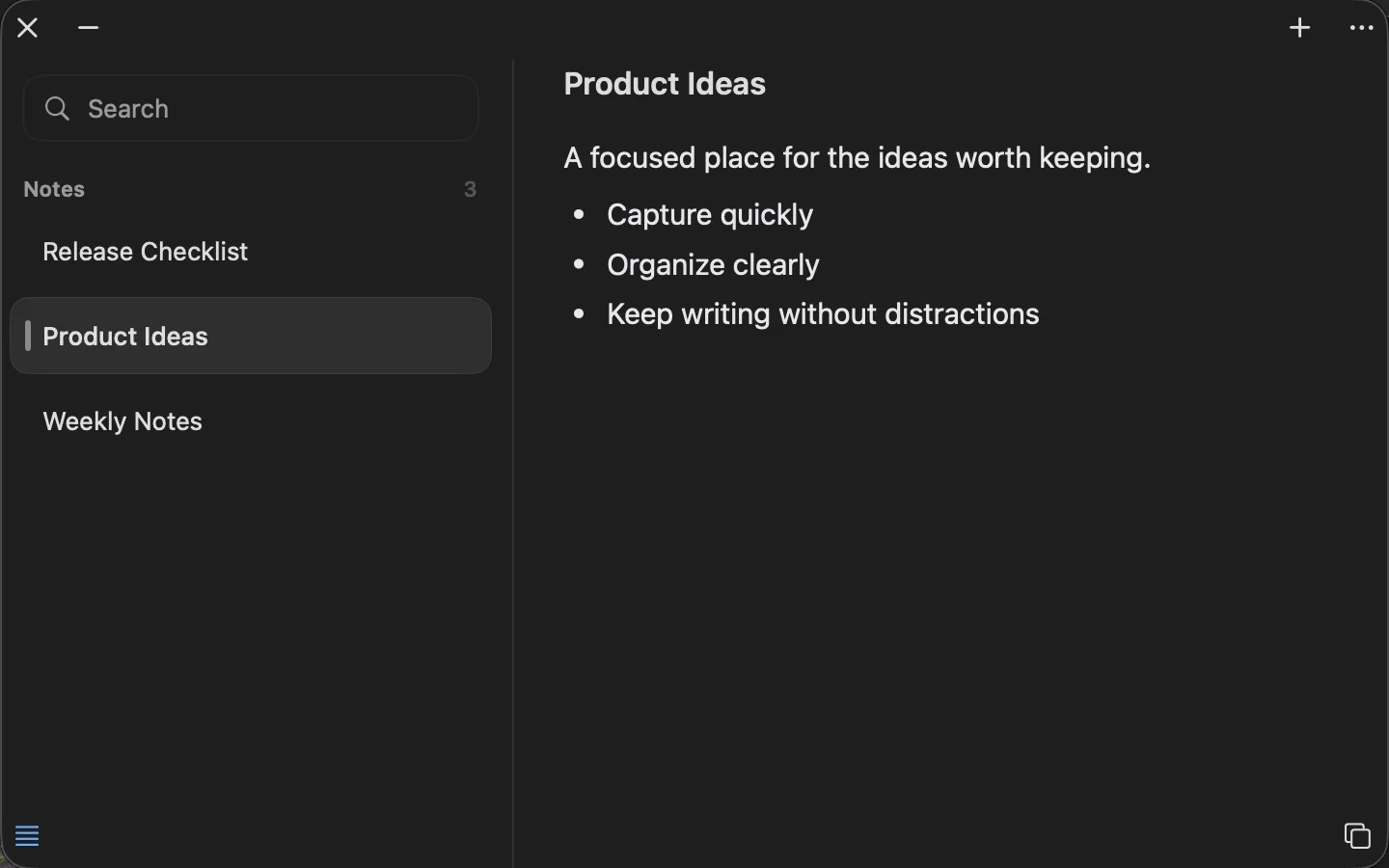
Open PINote from the menu bar or press ⌥⌘N — or pick a shortcut of your own. Write plain text when that is enough; add Markdown structure when the details matter.
Click the menu bar icon or press your global shortcut. Your note stays above other windows, ready while you read or work.
Headings, checklists, links, tables, code, and math. Structure when you want it, out of the way when you don’t.
Your notes live on your Mac, not on a PINote server. There is no account to create and no cloud service to connect.
Resize the window to fit the task. Open the note list to find a note, then hide it and give your words the space.
CLOSE AT HAND, OUT OF THE WAY
Keep your note above other windows, across Mac desktops and alongside full-screen apps. Enable auto-collapse to make room for your work, then click the floating icon to return to the same page.
Keep a note in sight while you research, meet, or follow a checklist. Drag it where it feels right and resize it to fit.
In Settings → Quick Open, enable auto-collapse on focus loss. Switching apps then folds your note into a floating icon on screen.
Drag the floating icon wherever you like, then click to restore your note. You can also close the window manually and reopen it from the menu bar.
Try it below: move the window, click the desktop to collapse, then click the icon to restore
Opening editor…
AN EDITOR THAT KEEPS UP
Type the way you normally do. When a note needs more, the tools are a keystroke away — and every one of them is included in the free version.
Add headings, lists, task lists, quotes, code blocks, tables, dividers, images, files, or equations from a single menu.
Type # and a space for a heading, - for a list, [ ] for a task, or ``` for a code block. Formatting appears as you write.
Drag a block by its handle to reorder a note. Click the handle to move it up or down, duplicate it, delete it, or turn it into another type.
Insert inline or block equations, write them in LaTeX, and see them rendered right in your note.
Paste or drop in images and files. Preview PDFs, audio, and video without leaving PINote; other files open with Quick Look.
Import existing .md files, export a note with its attachments, or copy it as Markdown or plain text.
THE LITTLE THINGS
A comfortable line length. A shortcut you remember. A note pinned where you can find it. Small choices that make everyday writing easier.
Choose a system, serif, or monospaced font and a text size. Adjust line height, paragraph spacing, and content width until the rhythm feels right.
Follow your Mac’s appearance or choose light or dark. Pick a standard, soft, or high-contrast editor theme and a note list density.
⌥⌘N shows or hides your notes and ⌥⌘S toggles the note list. Change either one to whatever your fingers remember.
Pin notes, drag to reorder, rename in the list, or duplicate a note to start from something familiar.
Remove common tracking parameters when you paste web links. Turn this off in Editor settings whenever you need the original URL.
Hover near the top for the window title and controls, or near the bottom for the note list and copy buttons. They fade when you move away; the note’s own heading stays put.
YOUR NOTES, YOUR WAY
Your notes should fit into your life. Add the details you need, find them again, and take them with you.
How storage and sync workKeep images and files right next to the words they belong with.
Search every note by title, text, or attachment name, or use Find and Replace inside the note you are writing.
Export Markdown and create portable backups. With Pro, sync notes with a folder you choose.
A LITTLE MORE ROOM
Every editing feature is free. Upgrade once when you need more than 9 notes or want to sync with a folder.
For your everyday essentials
No account needed
Early-bird price
Regular price US$19.90
One-time purchase. No subscription.
Prices shown are in USD. Local prices are displayed in the App Store. Purchase in PINote → Settings → PINote Pro; Apple handles payment.
Start the trial whenever you like, with no payment and no automatic renewal. When it ends, your existing notes stay readable and editable; going beyond 9 notes and folder sync require Pro.
On your Mac. PINote stores notes and attachments locally and does not upload them to a PINote server. You choose where to export, back up, or sync your files.
No PINote account is required, and you can read and write your notes offline. Downloading the app, buying or restoring Pro, and third-party folder syncing may need an internet connection.
Yes. The free version keeps up to 9 notes and includes the full editor, search, attachments, import, export, and backups. PINote Pro is a one-time in-app purchase that unlocks unlimited notes and folder sync, with Family Sharing. You can start a 14-day Pro trial in Settings. Pro is US$3.99 with the early-bird offer, with a regular price of US$19.90. Pay once, with no subscription; local App Store prices apply.
With Pro, you can sync Markdown notes with a folder you choose. That can be a local folder or one managed by a third-party sync service. PINote does not run its own cloud sync service.
Not at the moment — PINote is a Mac app. If you sync with a folder in a service such as iCloud Drive, other apps on your other devices can open those Markdown files, but PINote itself runs only on Mac.
Yes. With the PINote window active, press ⇧⌘O or choose File → Import… to import up to 100 .md files at once; each file becomes a note. The free version’s 9-note limit applies. To take notes elsewhere, export Markdown or copy a note as Markdown or plain text.
PINote requires macOS 14 Sonoma or later and supports Macs with Apple silicon or Intel processors. You can check compatibility for your device on the Mac App Store.
The app is available in English and Simplified Chinese. It follows your Mac’s language by default; choose another in Settings → General and the change applies right away.
Look for the PINote icon in your Mac’s menu bar and click it to open your notes. PINote is a menu bar app, so it does not appear in the Dock. You can also press ⌥⌘N from any app, or choose a different shortcut in Settings.
GO A LITTLE FURTHER
Install PINote, find the icon, write the first note, and set a global shortcut.
Slash commands, tasks, LaTeX, images, and attachments — all included in the free version.
Download a weekly plan, meeting notes, or a release checklist and make it yours.
See what stays on your Mac, what an export includes, and how a backup differs from folder sync.
Show or hide the window, format Markdown, import, export, and open Trash.
Menu-bar capture, a writing library, or linked notes? Compare the jobs each app is built for.
READY WHEN YOU ARE
Open PINote from the menu bar, catch the thought, and return to what you were doing.
Download on the Mac App StoreFree · macOS 14 or later · Optional one-time Pro upgrade