
Sticky notes for Mac
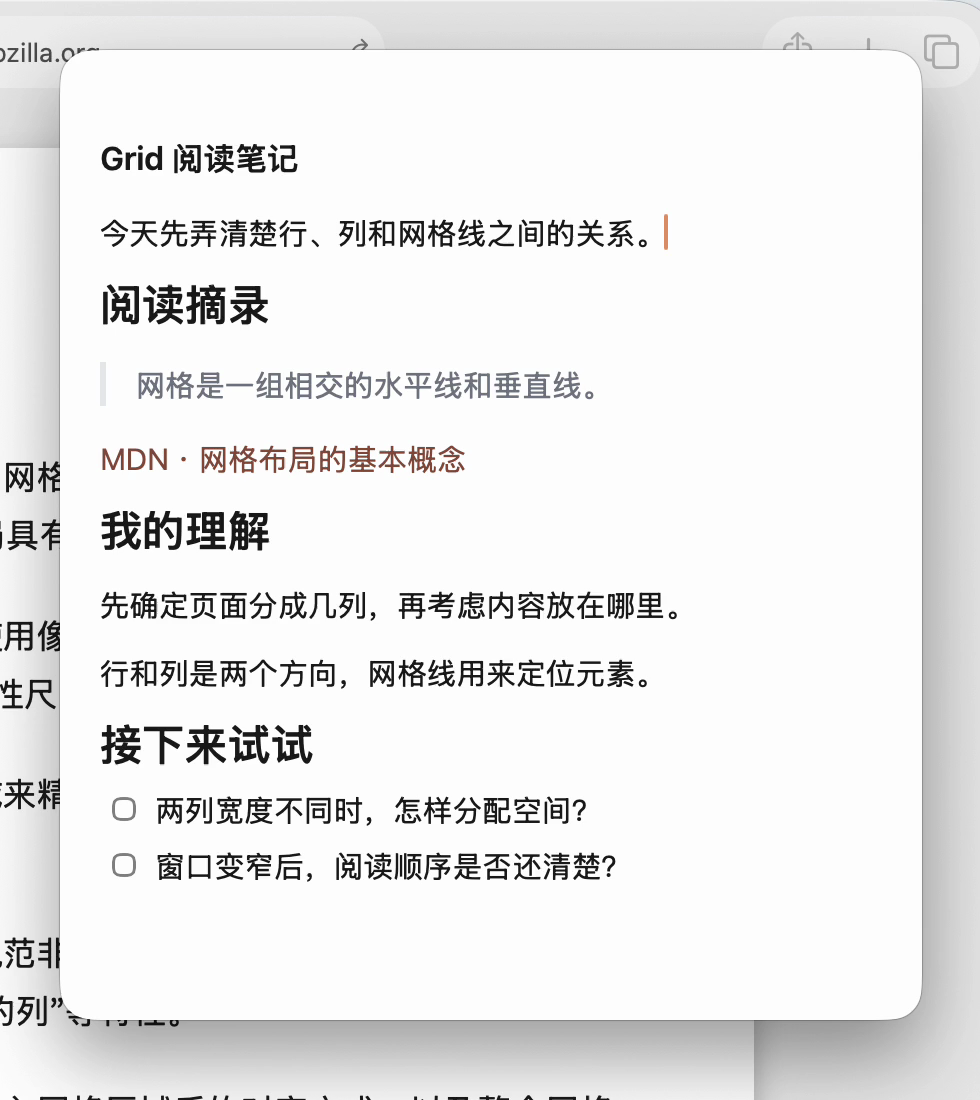
Keep a checklist or reading note beside the window you are working in. PINote gives you one floating Mac note window, a global shortcut, and a Markdown editor. For several separate desktop notes, Apple’s built-in Stickies may already be enough.
Last updated:
Free to start: up to 9 notes on macOS 14 or later. No PINote account required. The getting-started guide walks through your first note.
One working note, or several desktop reminders?
Want to feel how the window works? Try folding and restoring it on this page.
Choose Apple Stickies when you want separate notes arranged around your desktop. Choose PINote when you want to call up one working note, keep it near your source material, and organize the contents with Markdown.
For example, put a short reading checklist beside a browser, keep meeting decisions next to a document, or refer to a few implementation steps beside an editor. Start with the note you need now; the note list and search let you return to the others without opening more windows.
If your main need is a long-term writing library or linked knowledge base, the broader Mac notes app comparison covers Apple Notes, Bear, Obsidian, and other options.
How to put sticky notes on a Mac desktop
- Open Stickies using Spotlight, then choose File → New Note.
- Type your reminder and move the note where you want it. To keep that note above other windows, choose Window → Float on Top.
- Leave Stickies running. Apple explains that its notes are not visible on the desktop when the app is closed.
Stickies supports text formatting, lists, images, and PDFs. It can also find text across all notes. These are built-in capabilities, not reasons to install another app. See the Apple Stickies user guide.
Apple Stickies vs PINote
Both can keep their own notes above ordinary windows. The main differences are the window workflow and the editor.
Need | Apple Stickies | PINote |
|---|---|---|
Several visible notes | Separate note windows you can arrange together. | One main window; switch notes in the list. |
Keep a note above other windows | Window → Float on Top. | A floating window; optional collapse to an icon when it loses focus. |
Return while working | Open the app and select a note. | Menu bar or configurable global shortcut; default ⌥⌘N. |
Write and format | Formatted text, lists, images, and PDFs. | Markdown editing, checklists, tables, code, LaTeX, images, and attachments. |
Take content elsewhere | Text, RTF, or RTFD export; export all notes to Apple Notes. | Markdown and attachments export, restorable backups, and optional Pro folder sync. |
Cost and requirements | Included with macOS. | macOS 14+; free up to 9 notes. Optional one-time Pro upgrade. |
On a small screen, scroll the comparison sideways.
Published by PINote, not an independent review. Apple features were checked against its official guide on November 1, 2026; PINote details were checked against the current app implementation and existing product guides. This is a workflow comparison, not a speed benchmark.
Set up floating notes on Mac with PINote
Try folding and finding your note
Move the note by its title bar, click the minus button to fold it, then click the floating icon to return. You can also focus the title bar and use the arrow keys.
Keep the useful parts beside your work.
Write down the main idea
Choose the next thing to try
This window moves only inside the web demo. Floating above other Mac apps and global shortcuts require the installed app.
Each exercise keeps its own draft in this browser. Your text is not uploaded or synced to the Mac app.
- Open the app and create a note. Use the menu bar icon. Add a title and the next two things you need to do. Follow the first-note walkthrough if you are new to the app.
- Move the window beside your work. Drag and resize it so that it does not cover the part of the browser or editor you need to read.
- Choose how it behaves when you switch apps. In Settings → Quick Open, turn off Auto-Collapse When Inactive to keep the note expanded. Turn it on if you prefer the window to get out of the way. This controls PINote’s window only.
- Try the global shortcut. While another app is active, press ⌥⌘N (Option–Command–N) to show or hide PINote. The app must be running. Change the combination in Settings → Quick Open if needed; the shortcut guide includes conflict checks.
The shortcut reopens the existing window; it does not create another note. Search or select a different note in the list when you need to change context.
Turn a reminder into a useful working note
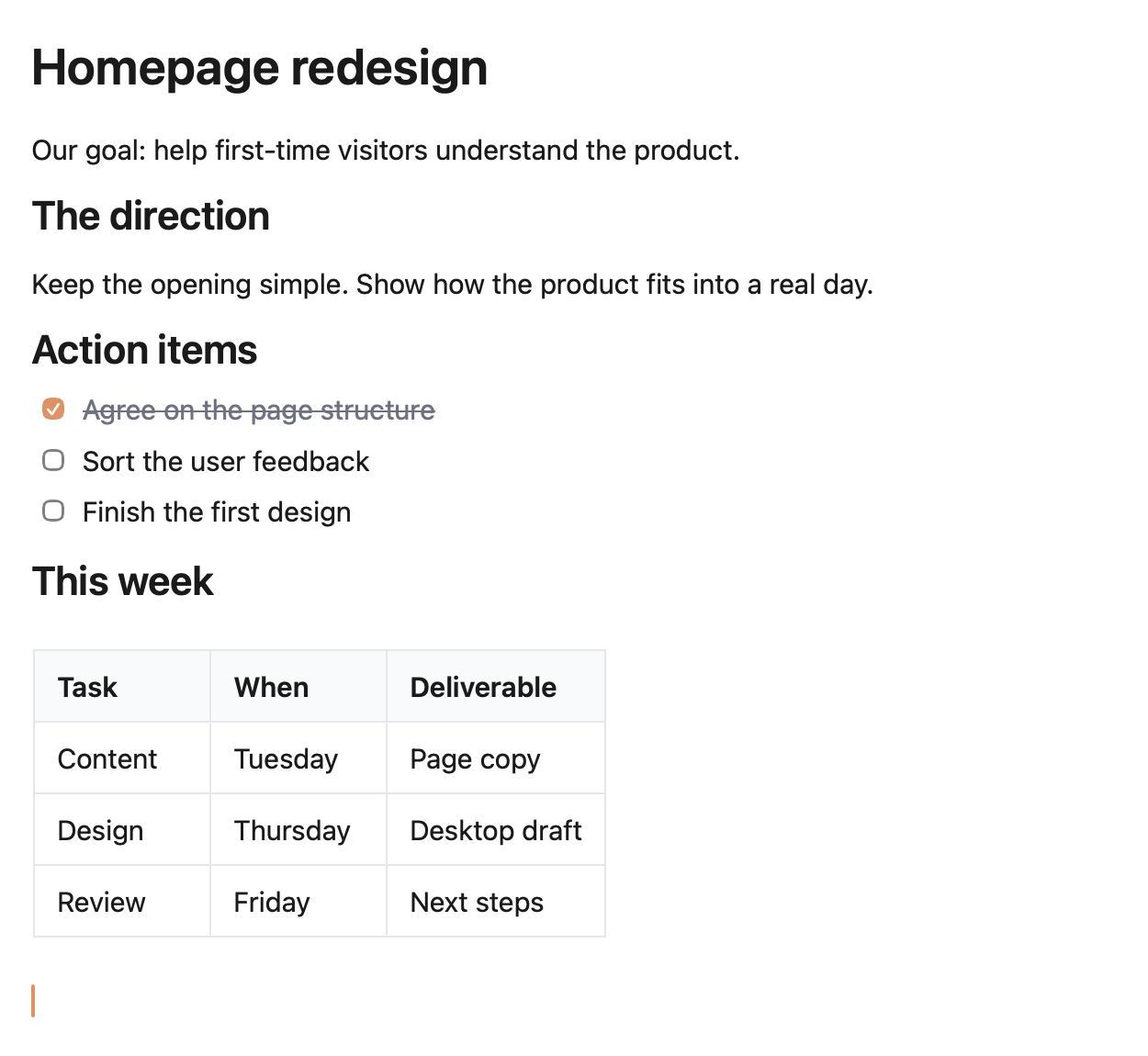
A short checklist can become a meeting note with decisions, a code reference, or a reading summary with a source link. PINote’s Markdown editor supports headings, tasks, tables, code, and LaTeX in the same note. You can start from a ready-to-edit Markdown template.
Keep a separate copy of important notes
PINote stores notes locally and can read, edit, and search them offline. Export a Markdown copy when you want to use the text elsewhere, or create a restorable backup before moving the library to a new Mac. The local notes guide explains the difference between the app library, exports, backups, and Pro folder sync.
Check your full-screen workflow before relying on it
“Float on top” describes how a note relates to other windows. Full-screen apps, Spaces, and multiple displays involve additional macOS behavior. Try your own arrangement with a sample note; this page does not promise visibility over every full-screen app or system screen. If the window seems missing, start with finding the note window.
Common questions about sticky notes on Mac
Does a Mac have built-in sticky notes?
Yes. Apple includes the Stickies app with macOS. Open Stickies and choose File → New Note. It is separate from Apple Notes and Quick Note.
How do I keep a note on top of other Mac windows?
In Apple Stickies, select the note and choose Window → Float on Top. PINote uses a floating note window; turn off Auto-Collapse When Inactive in Settings → Quick Open if you want it to stay open when you switch apps.
Can PINote show several sticky note windows at once?
No. PINote has one main note window. Switch between notes in the note list. Apple Stickies is a better fit if you need several independent notes visible together.
Can PINote keep another app on top?
No. PINote floats its own note window. It cannot pin a browser, video player, or another app above other windows.
Does PINote sync with an iPhone?
PINote is a Mac app and has no native iPhone app. Pro can sync Markdown with a folder you choose, including one managed by iCloud Drive. Folder sync does not create an iPhone version or a PINote cloud account.
Are PINote’s floating notes free?
The free version supports up to 9 notes, with the editor, attachments, search, export, and backups. The optional one-time Pro purchase unlocks unlimited notes and folder sync. PINote requires macOS 14 or later.